Jira Cloud · by PuzariCloud, makers of RestorePulse for Jira · facts checked 8 November 2026
What Jira Cloud does natively
Jira Cloud deletes issues permanently. There is no trash or recycle bin for issues: the request for one, JRACLOUD-36415, was opened in 2014 and has 720 votes (status: Under Consideration).
What you can do without an app:
Prevent it. Remove the Delete issues permission from most people in your permission scheme, and close or resolve issues instead of deleting them.
Archive instead of delete. On Jira Premium and Enterprise you can archive issues, which hides them and can be undone. This doesn't help once an issue is already deleted.
Recreate it by hand from an email notification, an export or a backup. A site backup can't be restored for a single issue without overwriting newer data, so in practice people copy the details back manually.
Step by step with RestorePulse for Jira
RestorePulse keeps a snapshot of every issue as it is created, edited or commented on. When an issue is deleted, a Jira administrator can see who deleted it and when, read its last version, and recreate it in one click.
Install RestorePulse from the Atlassian Marketplace, then open Jira settings → Apps → RestorePulse.
Click Snapshot existing issues once. It runs in the background and captures the issues you already have; new and changed issues are captured automatically from then on.
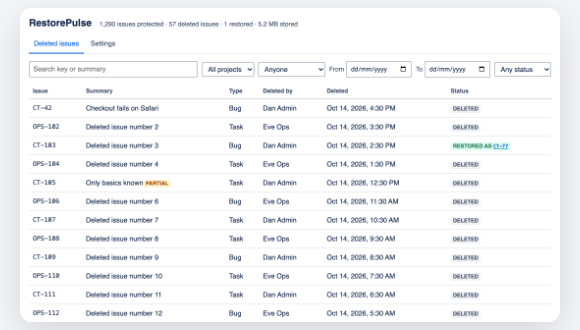
When an issue goes missing, open the Deleted issues tab. It lists every deleted issue, newest first, with who deleted it and when. Search by key or summary, or filter by project, person and date.
The Deleted issues tab: who deleted each issue, and when.
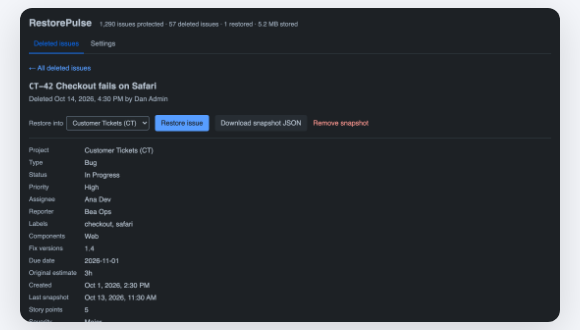
Click the issue to see its last version: fields, description, comments, links and attachment names.
Choose the project to restore into (the original one by default) and click Restore issue. RestorePulse creates a new issue with the fields, people, parent, comments (each starting "Originally by … on …") and links, plus a note that links the old key. Any value that no longer fits is skipped and listed in that note.
A deleted issue's snapshot, ready to restore (dark theme).
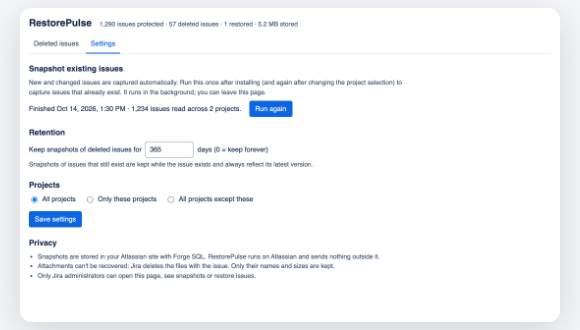
Optional: under Settings, set how long snapshots of deleted issues are kept (default 365 days) and which projects are covered.
Retention and project settings.
Limits, to be upfront
It can only restore issues it has a snapshot of. Install it before you need it; issues deleted before it captured them show as "partial" with basic details only.
Attachments can't be recovered, because Jira deletes the files with the issue (their names are kept).
The restored issue gets a new key and starts in the workflow's first status. History, worklogs, votes and watchers start fresh.
Only Jira administrators can view snapshots or restore.
RestorePulse for Jira is built on Atlassian Forge, runs on Atlassian and is free for up to 10 users. Full instructions are in the RestorePulse for Jira help.
Questions
Can I undo deleting an issue in Jira Cloud?
Not natively. Jira Cloud has no recycle bin for issues (JRACLOUD-36415). With RestorePulse installed beforehand, an admin can recreate a deleted issue from its last snapshot.
Will the restored issue keep its old key?
No. Jira doesn't allow reusing a deleted key, so the restored issue gets a new key, and a note on it links the old key.
Are comments and attachments restored?
Comments are, each credited to its original author and date in the text. Attachments are not, because Jira deletes the files; their names are listed.
Where are the snapshots stored?
In your own Atlassian site (Forge SQL). RestorePulse runs on Atlassian and makes no calls outside Atlassian.
How much does RestorePulse cost?
It is free for up to 10 users; larger sites pay per user through the Atlassian Marketplace.
We make RestorePulse for Jira, so we've stuck to what you can check: the feature request on jira.atlassian.com, the app's listing and its help page. Facts checked 8 November 2026. Support: support@puzaricloud.in. Not affiliated with Atlassian.